 Sketchglass
How to make your drawing come alive (and record a 6-second clip)
You traced it, you coloured it, now watch it dance across your desk. Here is every button on the "It's alive!" screen and how to film a clip worth sharing.
In this guide
To make a drawing come alive in Sketchglass, finish your trace, tap Finish to snap the paper, then tap "Bring it to life". The app cuts your drawing out of the photo and lets you pick Dance, Bounce, Wiggle or Walk on a Party background or on your real desk. Tap the red button to record a 6-second clip, then share it or save the video.
There is a special moment when a drawing stops being a drawing. You put the pencil down, and a second later the little dinosaur you just made is bobbing around on your table. Kids squeal. Grown-ups grin too.
This guide shows how to make your drawing come alive in Sketchglass, button by button. You will learn how the app turns a pencil drawing into a moving character, what each move and background does, how to film a clip that looks good, and a few drawing habits that make the cut-out cleaner.
How a paper drawing comes alive
Nothing is drawn for you. The character on screen is your own drawing, taken from the photo of your paper.
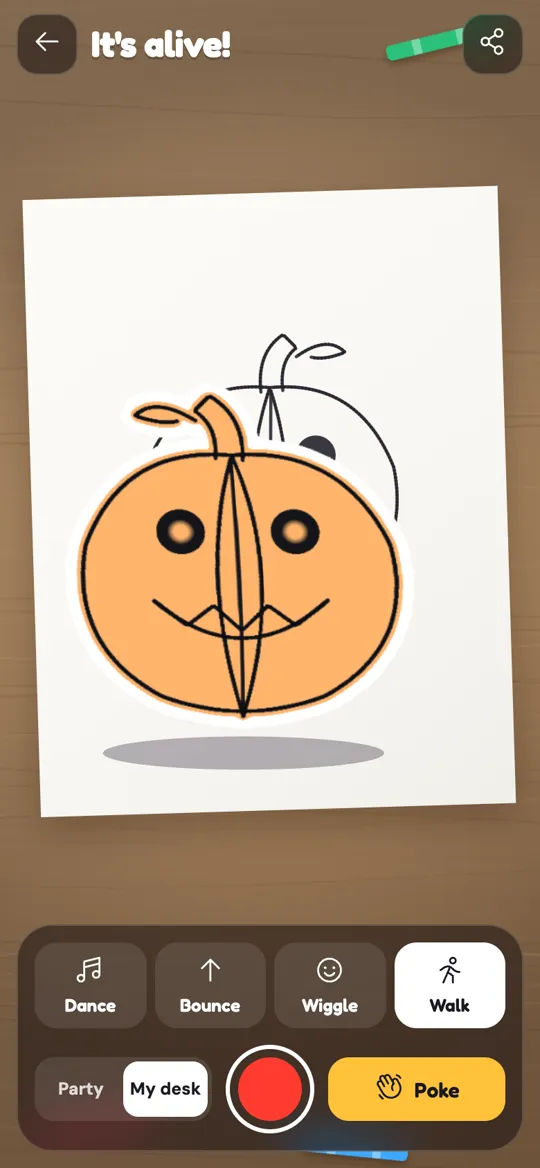
When you finish a trace, Sketchglass snaps a photo of your page. It finds your pencil lines, cuts the drawing out of the paper like a sticker and saves it with your card. On the "It's alive!" screen that sticker is bent and stretched in real time, so it can sway, squash, hop and stroll while still looking hand-made.
Two things are worth knowing up front:
- It all happens on your phone. The camera view and the photo of your drawing are processed on the device and never uploaded, and there is no account to create. Our parent's guide to AR drawing covers camera privacy in more detail.
- Every finished drawing can come alive. It does not matter whether you got one star or three. The sticker is made from whatever you drew.
Step by step: bring your drawing to life
You need a finished trace, so start with any sketch. If you want a first one that moves especially well, our baby T-Rex tutorial is a great pick.
- Finish your drawing. Trace the last step, then tap Finish. Keep the phone steady over the paper so the snap is sharp.
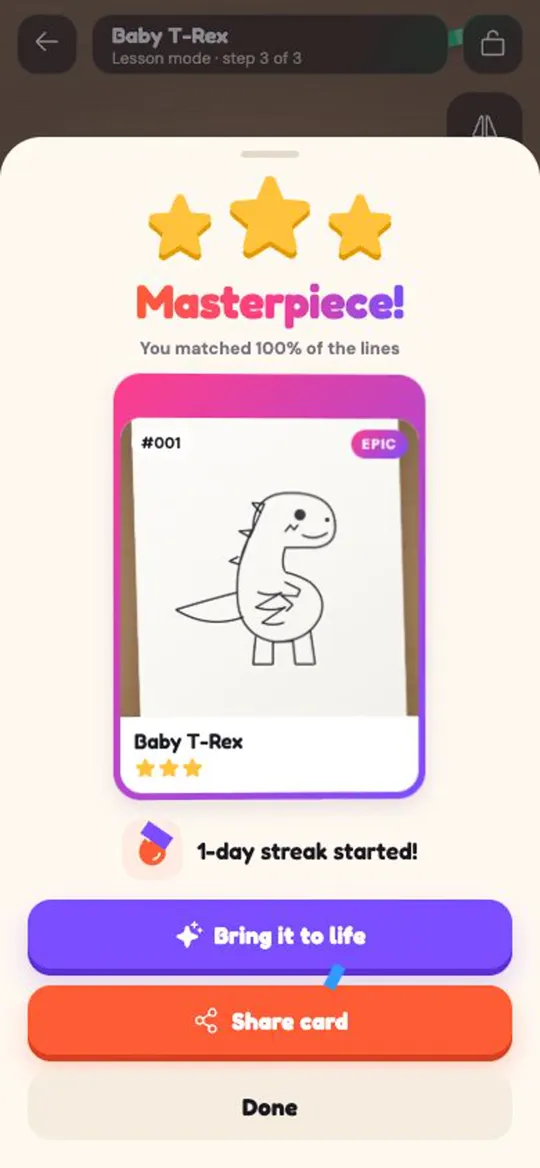
- Check your result. You see your stars and your new card. Below them, tap Bring it to life.
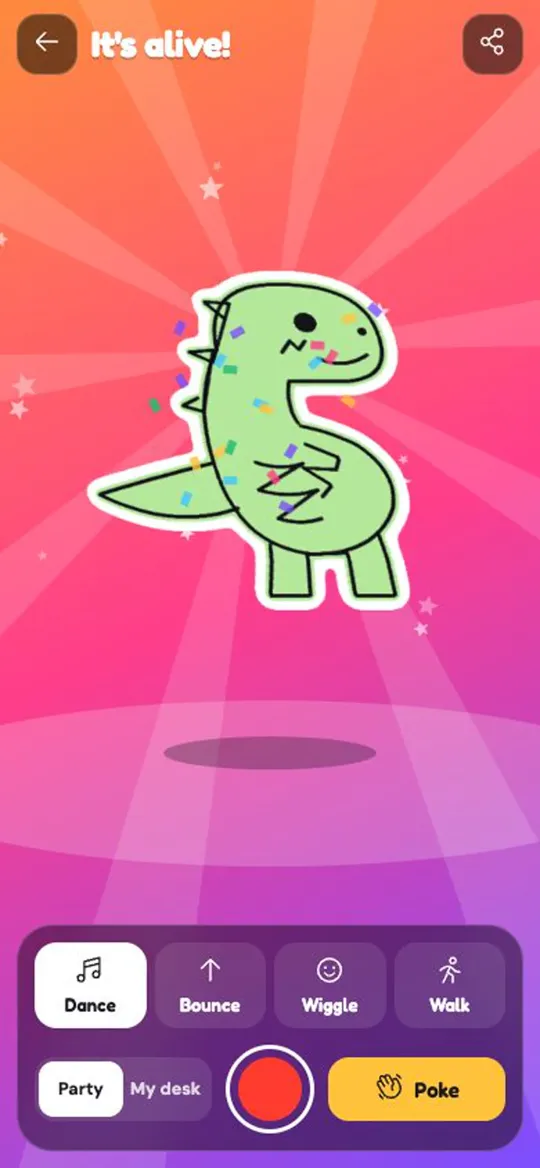
- Watch it wake up. Your drawing appears on the "It's alive!" screen and starts with Dance.
- Pick a move. Tap Dance, Bounce, Wiggle or Walk in the bottom panel.
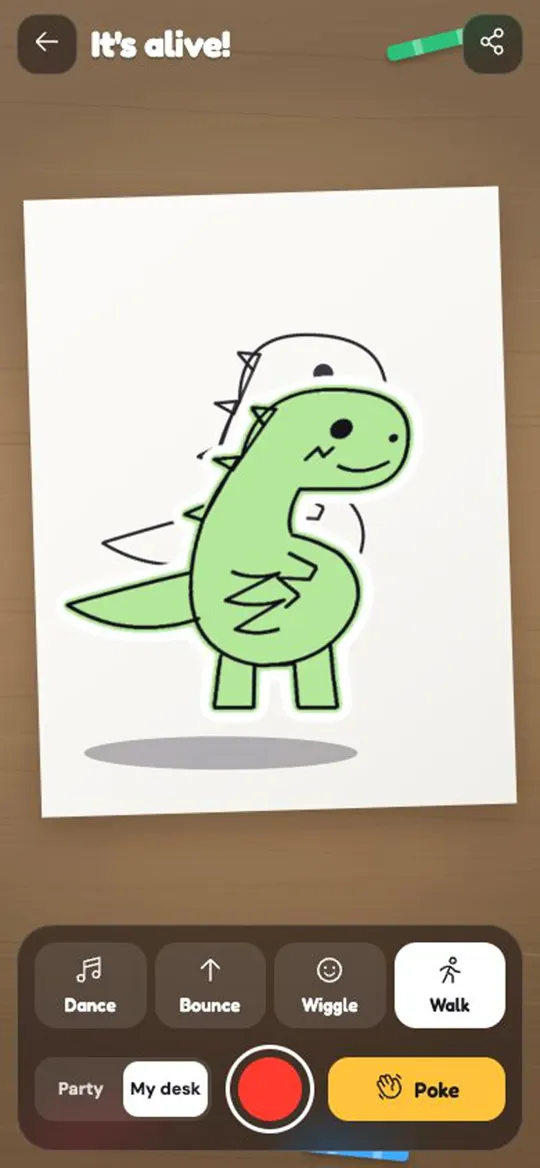
- Pick a background. Choose Party for a bright stage, or My desk to see your real table through the camera.
- Poke it. Tap the yellow Poke button, or tap the drawing itself, and it jumps with a burst of confetti.
- Record. Tap the big red button. A REC badge appears, and the app films exactly 6 seconds.
- Share or save. A preview plays on a loop. Tap Share clip to send it, or Save video to keep it on your phone.
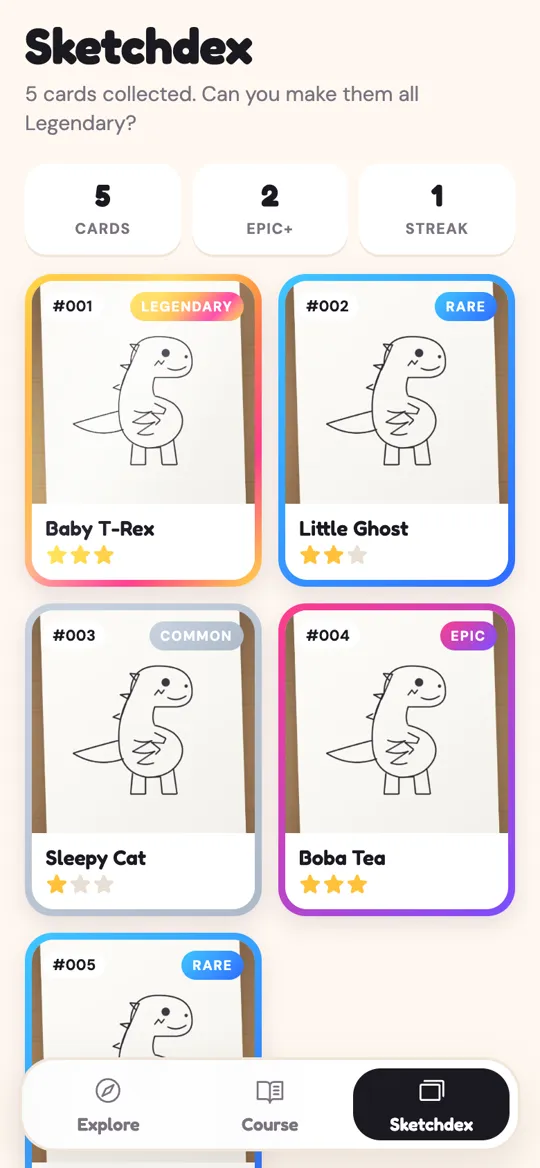
You can come back later, too. Open a card in your Sketchdex and tap Bring it to life to replay any old drawing. Our Sketchdex guide explains how cards and stars work.
The four moves and two backgrounds
Each move gives your drawing a different personality.
- Dance leans the drawing from side to side with small happy hops. It is the default and suits almost anything.
- Bounce makes it hop and squash like a jelly. Great for round shapes like a pumpkin or a cupcake.
- Wiggle gives quick, giggly shakes. Animals with tails and ears look funny here.
- Walk sends your drawing strolling across the screen. When it reaches the edge, it turns around and walks back.
Dance and Walk are open from the start. Bounce and Wiggle each unlock by watching one short video, and then that move stays unlocked for good. Sketchglass Pro, a one-time purchase, includes them as well. There is no weekly subscription.
For the background, Party is a glowing stage with light rays and stars. My desk shows the live camera, so the drawing appears to walk around on your actual paper and table. My desk only works when you come straight from tracing, because the camera needs to be running. From the Sketchdex, the button is greyed out and Party is used instead.
How to record a 6-second clip that looks great
Six seconds goes fast, so plan the clip before you press record. The video shows only your drawing and its background; the buttons are not filmed.
- Choose the move first. Changing moves during the recording works, but a clip with one clear move usually looks calmer.
- For My desk, steady the phone. Leave it on its stand, just as you did for tracing. A wobbly camera makes the desk shake behind your drawing.
- Tidy the desk. Move pencils, wrappers and erasers out of the frame so the drawing is the star.
- Add light. A lamp or a window helps the camera background look bright and clear.
- Poke at the right time. Tap the red button, count to two, then poke. The jump and confetti land in the middle of the clip instead of the very start.
- Watch the preview. If you missed the moment, close the sheet and record again. Each recording is another 6 seconds.
The clip is a short upright video, which fits well on phones. If a child is sharing, a grown-up should help choose where it goes and who sees it.
Drawing tips for a cleaner cut-out
The app has to find your drawing in the photo, so a few habits help it cut a neat outline.
- Close the outline. Make sure the outer line of your drawing meets itself with no gaps. A closed shape cuts out as one piece.
- Go a little darker at the end. Light sketch lines are great while you trace. Before you tap Finish, go over the outline once with a bit more pressure.
- Use plain paper. Light, plain paper gives the clearest contrast. Lined paper and busy patterns can confuse the edges.
- Colour inside the lines. Coloured pencils or markers make the character pop on the Party background, as you can see with the green T-Rex and the orange pumpkin.
- Snap in even light. Avoid a strong shadow from your hand or phone falling across the page.
If your snaps keep coming out blurry or dark, our guide on how to set up your phone for AR tracing covers stand height and lighting.
Ideas for your animated drawings
Once you know the buttons, it is fun to make a small series.
- A dino parade. Trace a few animals, record each one walking, and play the clips one after another.
- Halloween party. Draw the little ghost and the jack-o-lantern, then give each a Bounce clip.
- Birthday message. Trace a friend's name in one of the 8 lettering styles, colour it, and record it dancing.
- Before and after. Show your card next to the clip, so friends see the paper drawing and then watch it move.
New to tracing with a phone? Start with what AR drawing is and how it works, then come back here when your first drawing is ready to dance.
FAQ
Does Sketchglass draw or change my picture?
No. The moving character is your own drawing, cut out from the photo you snap when you tap Finish. The app bends and moves that cut-out, but the lines and colours are the ones you made.
Why is the My desk button greyed out?
My desk uses the live camera, so it only works when you open "Bring it to life" straight from a finished trace. When you open an older card from the Sketchdex, the camera is off and the Party background is used.
How long is the recorded clip?
Each recording is exactly 6 seconds. After it finishes, a preview plays on a loop, and you can tap Share clip or Save video. You can record again as many times as you like.
Are Bounce and Wiggle free?
Dance and Walk are open from the start. Bounce and Wiggle each unlock by watching one short video, and they stay unlocked after that. Sketchglass Pro, a one-time purchase, also includes them.
Is my drawing uploaded anywhere?
No. The camera view and the photo of your drawing are processed on your phone and never uploaded. A clip only leaves your phone if you choose to share it.